When comparing Descript vs CapCut, choosing the right video editor can either speed up your entire publishing schedule or trap you in hours of manual timeline tweaking every week. If you publish YouTube videos, podcasts, tutorials, educational lessons, or social media clips, you already know how fast editing bottlenecks pile up. One long recording turns into hours of scrubbing, cutting silences, fixing awkward pauses, generating captions, and exporting versions for different screens.
Why Creators Compare Descript vs CapCut for Video Editing
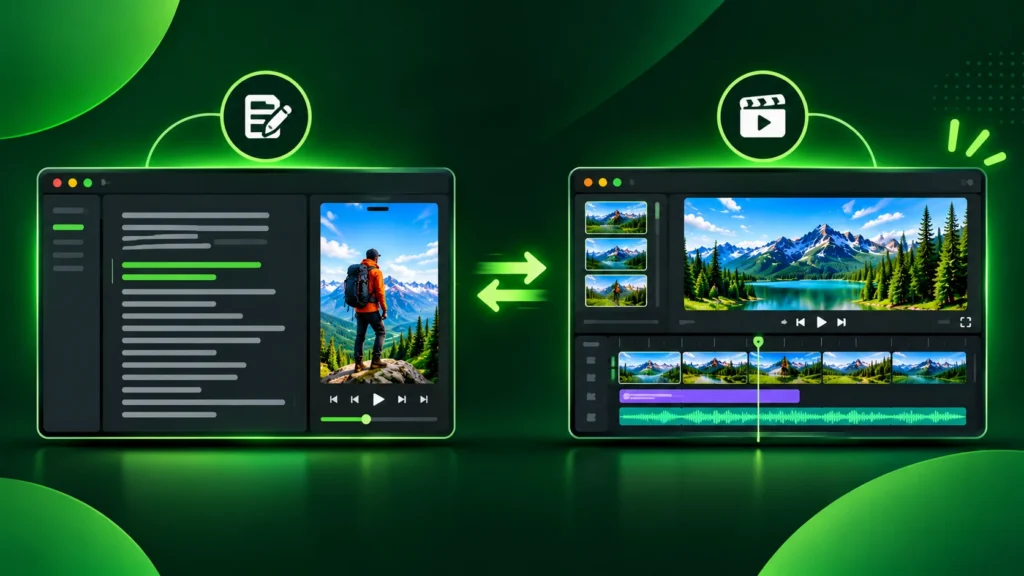
When people evaluate modern tools to cut down that friction, Descript vs CapCut comes up constantly—and for good reason. Both platforms have embraced AI-assisted editing to make video creation faster and more accessible, yet they approach editing from fundamentally different mental models. One treats video editing much like editing a text document, while the other leans heavily into fast visual timelines, templates, and social-first pacing.
In this detailed comparison, we look closely at Descript vs CapCut across real creator and team workflows, highlight where each tool shines, point out practical limitations, and help you pick the setup that matches how you actually produce content.
Quick Comparison Overview: Descript vs CapCut Workflow
Before getting into individual workflows, this table summarizes how the two platforms differ across key editing dimensions.
| Feature / Dimension | Descript | CapCut |
| Core Editing Style | Document-style text-based editing synced to audio and video | Visual timeline and template-driven multi-track editing |
| Best For | Talking-head videos, podcasts, interviews, screen recordings, courses | Short-form social clips, fast visual cuts, trends, multi-device creators |
| Primary Advantage | Edit spoken words by deleting or rearranging transcript text | Speed up visual pacing, transitions, effects, and social formatting |
| Learning Curve | Intuitive for writers, podcasters, and educators | Familiar to anyone who has used classic video timelines or mobile editors |
| Main Watch-Out | Heavy motion design or complex visual compositing is not its core strength | Long-form dialogue cleanup can feel less text-centric than script editing |
Why Creator Workflows Are Shifting Toward AI Assistance
Traditional video editing often demands more time than the recording itself. Even experienced creators lose momentum when every minor stumble, filler phrase, or caption adjustment requires zooming into a timeline and making dozens of tiny cuts.
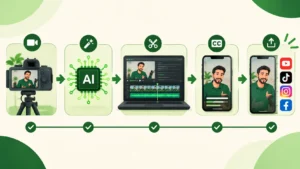
Modern AI-assisted editing helps creators in practical ways:
-
Faster rough cuts: Turning raw recordings into a clean first draft takes less time when you do not have to hunt through every waveform peak by hand.
-
Easier repurposing: A single longer recording can be shaped into a main episode plus shorter highlights without starting from scratch.
-
Lower friction for solo and lean teams: Small teams and solo creators can maintain consistent output without dedicating an entire day to basic trim and caption work.
Still, automation is only a starting point. Strong storytelling, clear structure, accurate wording, and good pacing still depend on human judgment. If you are exploring broader options for your stack, our AI tool reviews cover how different creative utilities compare in everyday use.
How Descript Works in a Real Editing Workflow
Descript became popular by letting creators edit audio and video through a synced transcript. Instead of focusing first on visual tracks, you read what was said, delete unwanted sentences or filler words in the text, and watch the underlying video and audio adjust accordingly.
Where Descript Excels
-
Dialogue-heavy and script-driven content: If your videos revolve around teaching, explaining concepts, interviewing guests, or recording walkthroughs, editing by text feels natural and fast.
-
Cleaning up spoken delivery: Removing long pauses, repeated lines, or verbal stumbles is straightforward when you can see the words right in front of you.
-
Podcast and video parity: Creators who publish both audio episodes and video versions appreciate keeping dialogue edits aligned in one place.
Practical Limitations of Descript
-
Complex visual motion: If your style relies on intricate keyframed motion graphics, heavy visual effects, or cinema-style color grading, you may still want a dedicated visual editor alongside it.
-
Transcript accuracy checks: Automated transcription speeds up work dramatically, yet proper nouns, technical terms, and specialized vocabulary still require a careful human pass before publishing.
How CapCut Works in a Real Editing Workflow
CapCut is widely known for fast visual editing, accessible timeline controls, rich templates, and quick social-media formatting. Creators moving between desktop and mobile—or producing high-energy Reels, Shorts, and TikToks—often gravitate toward its speed and visual toolkit.
Where CapCut Excels
-
Visual rhythm and social formatting: Adding dynamic transitions, text overlays, sound effects, and aspect-ratio adjustments fits fast-paced social feeds naturally.
-
Template and trend agility: When speed and visual variety matter on short-form channels, ready-made layouts and quick adjustments help creators publish rapidly.
-
Cross-device convenience: Being able to start or tweak edits across environments suits creators who work on the go or collaborate quickly on social assets.
Practical Limitations of CapCut
-
Long-form narrative restructuring: When you have a 45-minute interview or deep-dive tutorial and want to rethink the spoken structure around the script, text-first editing can feel more direct.
-
Over-reliance on loud effects: Heavy visual effects and flashy presets can distract from the core message if used without restraint—especially in educational or B2B content.
Key Differences in Descript vs CapCut Daily Output
When deciding between Descript vs CapCut, feature checklists only tell half the story. What matters most is how each tool fits into your weekly production rhythm.
1. Words First vs. Visual Timeline First
If you think in sentences, arguments, and spoken flow, editing via text helps you shape the story before polishing visuals. If you think in shots, cuts, beats, and visual hooks, a visual timeline editor feels immediate and tactile.
2. Long-Form Depth vs. Short-Form Speed
Long-form educators, coaches, and podcasters usually care deeply about structure, clarity, and keeping viewers engaged over several minutes. Short-form creators often prioritize punchy hooks, crisp captions, and rapid turnaround across multiple vertical posts. Many creators actually use both—shaping core dialogue or long segments in one tool and polishing social cuts or visual flair in the other.
3. Team Review and Consistency
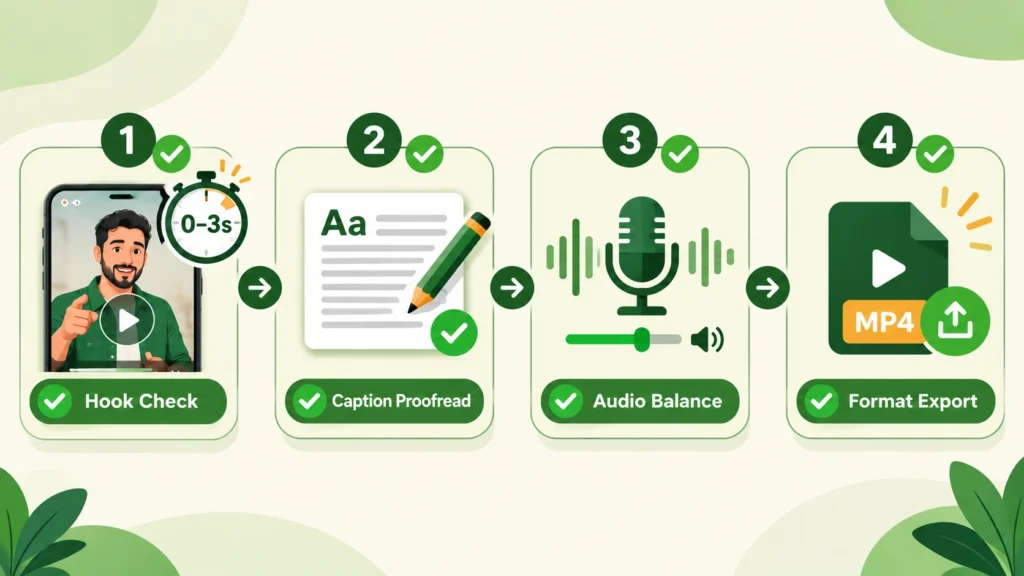
Whether you work solo or with an editor, consistent naming, clean caption proofreading, and standard export presets save headaches later. Keep a short checklist before publishing any video:
-
Verify opening hook clarity in the first three seconds.
-
Check captions for spelling, names, and punctuation.
-
Confirm audio levels are balanced and free of harsh clipping.
-
Export in the exact aspect ratio and resolution needed for each platform.
How to Choose Between Descript vs CapCut
If you are still weighing Descript vs CapCut, use these clear guidelines to match the tool to your actual workload:
-
Choose Descript if: Your content is heavily voice- and dialogue-driven (tutorials, interviews, courses, podcasts) and you want to cut, rearrange, and refine spoken content through text.
-
Choose CapCut if: Your primary focus is fast visual editing, social-first formatting, templates, and snappy cuts for short-form platforms or dynamic visual edits.
-
Combine them if: You produce both long-form spoken content and high-velocity short clips, and want specialized strengths at different stages of your workflow.
Keep in mind that editing platforms regularly update their plans, AI credits, and feature sets. Always test a real project from your own library—and check current pricing and terms directly on each tool’s official site—before committing to a long-term plan.
If you are also comparing tools that turn long recordings into vertical clips automatically, check out our Opus Clip vs Munch comparison and browse more software comparisons to build a complete creator stack.
Frequently Asked Questions
Is Descript better than CapCut for YouTube creators?
It depends on your YouTube format. For talking-head tutorials, commentary, interviews, and educational videos where dialogue drives retention, Descript is often very convenient. For fast-cut entertainment, vlogs, or visual-heavy edits, CapCut can feel faster.
Can beginners use Descript and CapCut without prior video editing experience?
Yes. Both platforms lower the barrier to entry compared to traditional pro suites, though you will still get much better results once you learn basic pacing, audio leveling, and framing habits.
Do I need paid plans to test either tool?
Starter or free tiers are commonly used to test basic workflows on sample or real footage, though higher export limits, advanced AI features, or team options typically require paid tiers. Check official product pages for exact current limits.
What is the biggest mistake creators make with AI video editors?
Publishing raw AI output without reviewing pacing, context, and captions. A quick human pass catches awkward cuts, misspelled terms, and flat openings that hurt viewer retention.